How to make a contact sheet on a Mac
Print one free from Photos, or turn a folder into captioned PDF and image pages.
If the pictures are already in Apple Photos, select them and use its Contact Sheet print format. If the source is an ordinary Finder folder, or you need repeatable grids, filenames and multi-page exports, use a dedicated contact-sheet maker.
Apple method needs no extra app · PX7 trial needs no card · macOS 14+
Short answer
Choose by where the images already live
- Already in PhotosUse File > Print > Contact Sheet
- Ordinary Finder folderAdd the folder directly to a contact-sheet app
- Need one PDFUse Save as PDF in the Mac print dialog or export PDF directly
- Need filename or metadata captionsChoose the caption before export
Free built-in method
Create a contact sheet in Apple Photos
- Open Photos and select the pictures in Library or an album.
- Choose File > Print.
- Select the Contact Sheet format.
- Choose the paper size, orientation and the available contact-sheet settings.
- Click Print for paper output.
- For a file instead, open the PDF menu in the Mac print dialog and choose Save as PDF.
This is the smallest solution when the images already belong in your Photos library. Apple documents both the Contact Sheet print format and the system PDF menu. The available detail controls can vary with the current Photos and printer dialogs.
Apple: Print your own photos on Mac
Apple: Save a document as a PDF on Mac
Folder workflow
Build captioned pages without importing a photo library
- Add individual HEIC, JPEG, PNG, TIFF or WebP files, or add their entire folder.
- Choose A4, US Letter, square, 16:9 or a custom page in portrait or landscape.
- Set the columns, rows, margins and spacing. Use Fit to preserve every pixel or Fill for even cells.
- Choose filenames, capture dates, dimensions, camera models or a combined caption.
- Check every page in the live preview, then export one PDF or numbered PNG or JPEG pages.
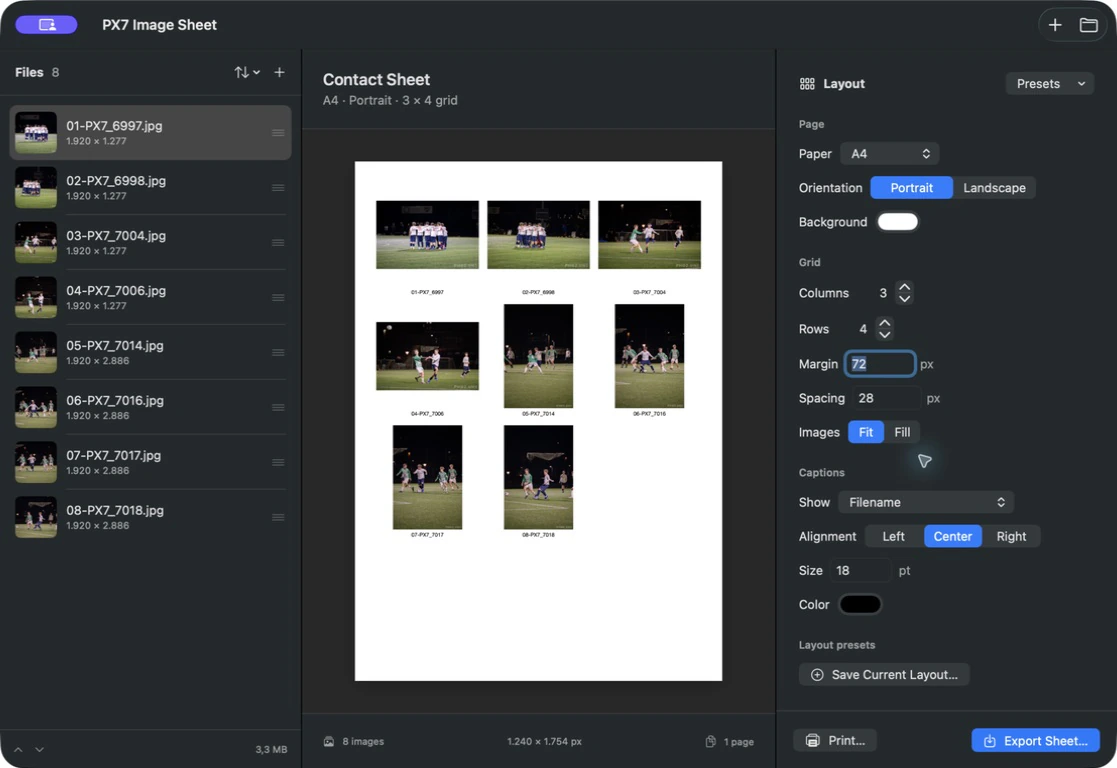
Seven days · no card · EUR 10 once · no subscription · local processing
Or install the same signed and notarized trial with Homebrew:
brew install --cask px7digital/tap/px7-image-sheetComparison
Photos is free; PX7 is for folders and repeatable output
- No additional downloadApple Photos
- Start from a Photos libraryApple Photos
- Start from a Finder folderPX7 Image Sheet
- Choose filename or photo-metadata captionsPX7 Image Sheet
- Save complete layout presetsPX7 Image Sheet
- Export numbered PNG or JPEG pagesPX7 Image Sheet
- Print or create a PDFBoth
Questions
Common Mac contact-sheet questions
Can Apple Photos make a contact sheet?
Yes. Select the photos, choose File > Print, then select the Contact Sheet format.
Can I save a Mac contact sheet as a PDF?
Yes. From the Mac print dialog, open the PDF menu and choose Save as PDF. PX7 Image Sheet can also export one multi-page PDF directly.
Can I make a contact sheet from a Finder folder?
Yes. Add the folder to PX7 Image Sheet and it loads the supported image files without importing them into a library.
Can a contact sheet show image filenames?
Yes. PX7 Image Sheet can caption each image with its filename, capture date, dimensions, camera model or a compact combination.
Does creating a contact sheet change the original images?
No. PX7 reads the source images and creates new output files. Apple Photos also prints or saves output without replacing the selected originals.
PX7 Digital makes PX7 Image Sheet, so this guide is not neutral. The Apple Photos and Save as PDF steps were checked against Apple's current guides on 27 August 2026. The product screenshot was captured from the signed public 1.0.3 build on the same date. Report an outdated step.